
Receive $250 with our referral program!

Guides

Protocols and Training

How to Review Notes under Each Question?

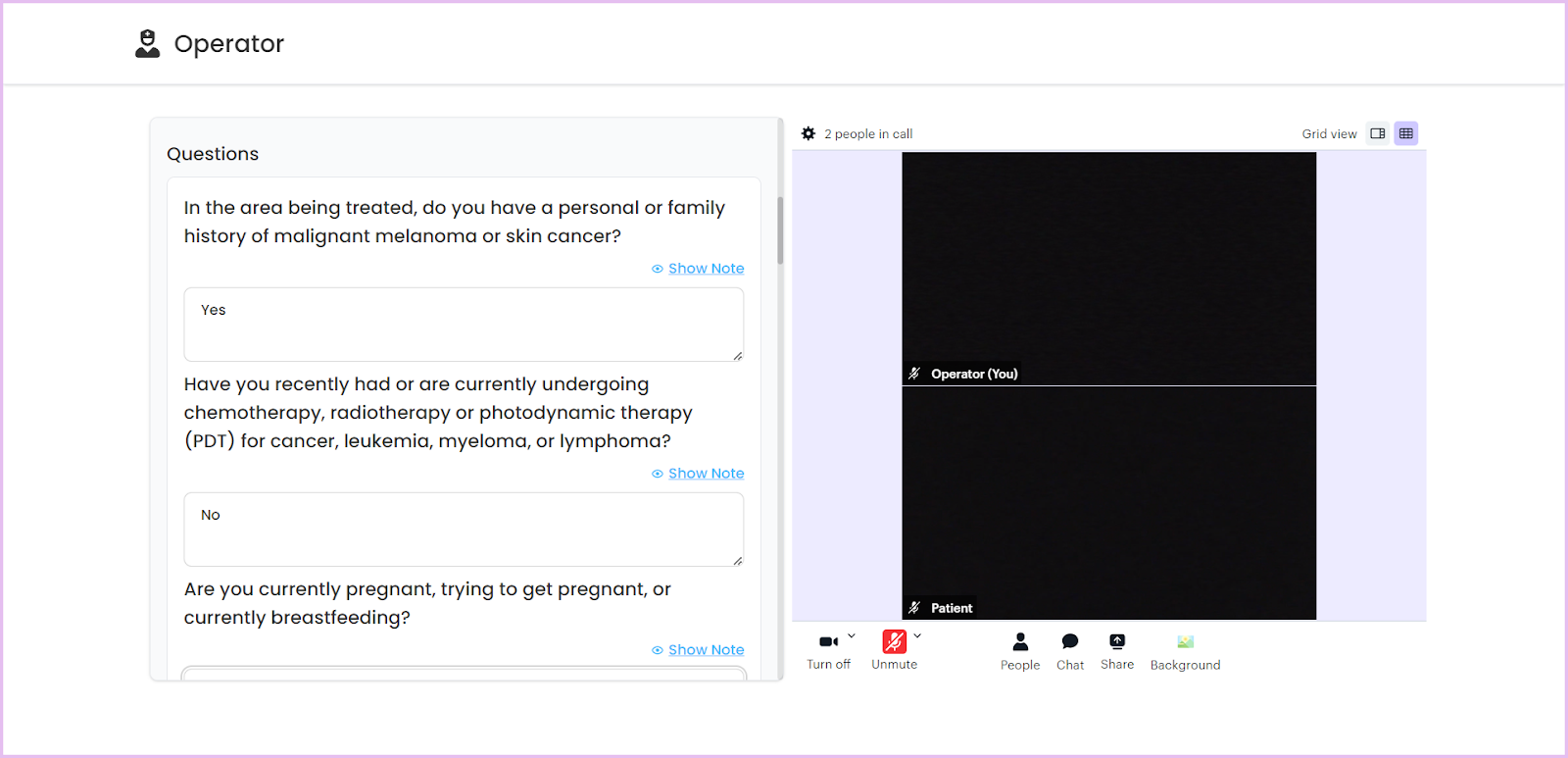
  1. Once you have accepted the call, scroll down to the questions displayed on the left hand side.

  1. Use the fields under each question to record patient’s response.
nRCHxpjW6nBJlBpL5embSF6ue4qD5OTK1sFQKyFf3oyZ4Xp25Xp0LsAn7GgRbZHN n5A7ot99rbUHw18W RXd9eFi Cv ucMV1iz9PHjVP6tutHmwUsA24J4AYf4wJ6DlNXTbHkg 2cvqNqUuRHM

  1. Here, you can see a blue hyperlink below each question. For some questions where it is for informational purpose, the note is hidden by default. You can view the note by clicking the Show Note button.

x1dpB l43k320jeA8kDkllrGjEjTFAeKOqLsbXWtQeXoQUVL7hUH cn0klgD1dHUaeOZhRReaBoMVHFYjy02xPCOt0ln5sQf830QAcIaLaVZEoRtZsqCKwOFzJqhLvv3j Ia2M7qvy71Xv4 wCd0

  1. However, for some questions, additional information needs to be reviewed before approval. For these questions, the notes are displayed by default. You can hide the note by clicking the Hide Note button.

Oxd6QRGRRrfwHUXZWDuxXhKIXHEYjeVRacaDQQeQkxVsLMArk5qtqjLk2CwZYQvD57PaZDocLFoO5NW9lVgiA1Rz snS94RXZMirdpiXX6TLa DXqWXupL oRfC5BCCKy60zyFZ1iMRGx Wbbp4z

Login to your Account